

Set up Video Wall on Roku
Two short parts: add the channel on the Roku, then pair it from the Ring app on your phone. About five minutes end to end.
Worth knowing before you start: a Roku plays one video at a time, so the wall shows a fresh snapshot of each camera and a camera you open full screen plays live, a few seconds behind. Details below the steps; everything else works the same as on our other TVs.
Part 1 — On your Roku
Add Video Wall Live, then scan the code it shows you.
Open the Streaming Store.
Search Video Wall Live.
Select Add channel.
Open Video Wall.
Scan the QR code.
Part 2 — In the Ring app on your phone
Start your free trial, then enter the code from your TV.
Tap Start Free Trial.
Sign in to Ring if asked.
Agree and Continue.
Pick your cameras.
Enter the pairing code.
Your phone confirms it.
You're paired.
How the wall works on Roku
A Roku can decode one video stream at a time, so Video Wall shows your cameras two ways. The wall is a grid of snapshots that refresh on their own. Open a camera and it plays full screen, live with sound, a few seconds behind real time. On Apple TV, Fire TV and Google TV every tile is live video; that difference is the Roku hardware, not your cameras or Wi-Fi.
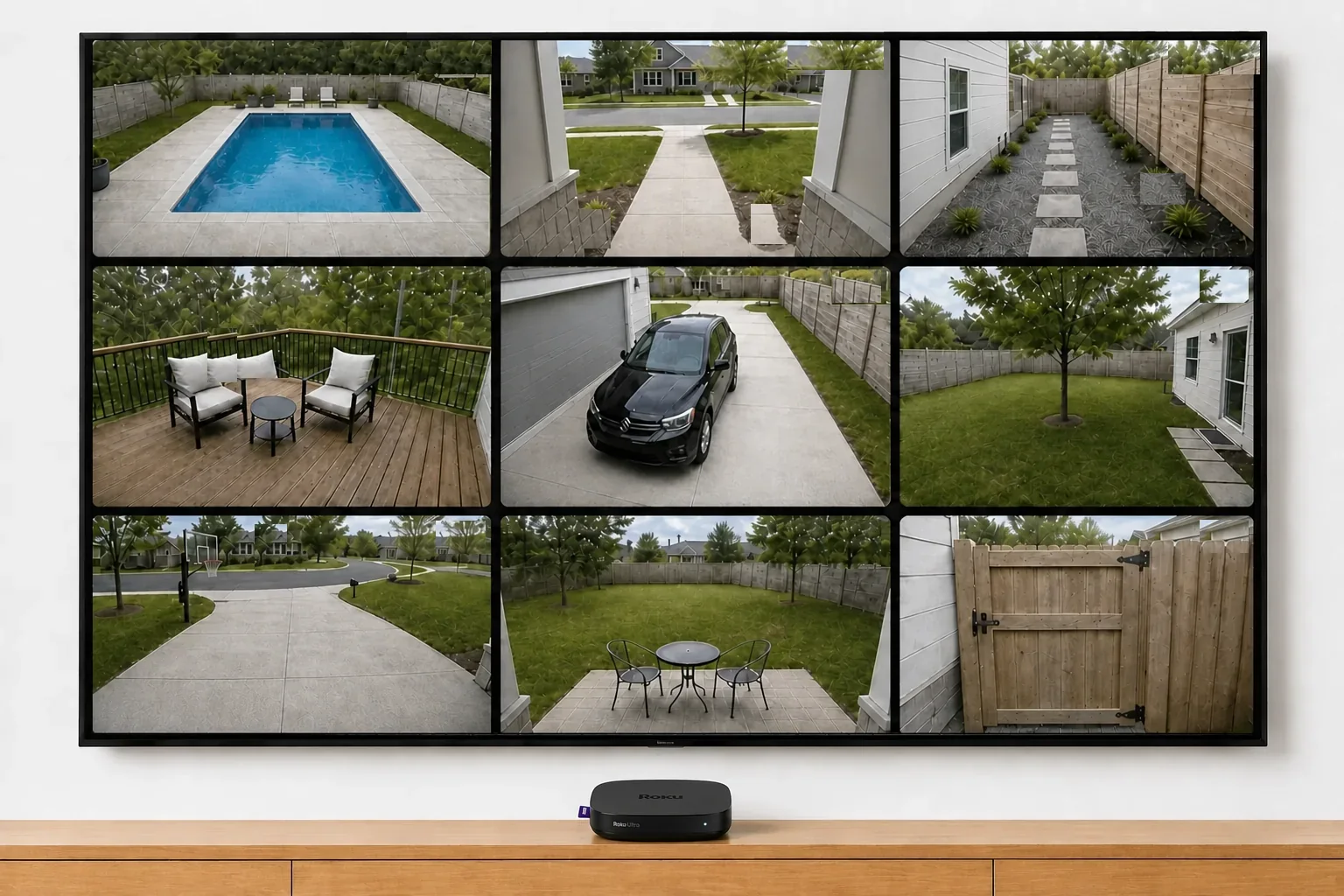
How often the wall updates. Each tile refreshes as often as that camera’s Snapshot Capture setting in the Ring app allows. Most people have never opened it. In the Ring app, open the camera, then Device Settings → Snapshot Capture, and choose the fastest option: every 15 to 30 seconds on wired cameras, every few minutes on battery cameras.
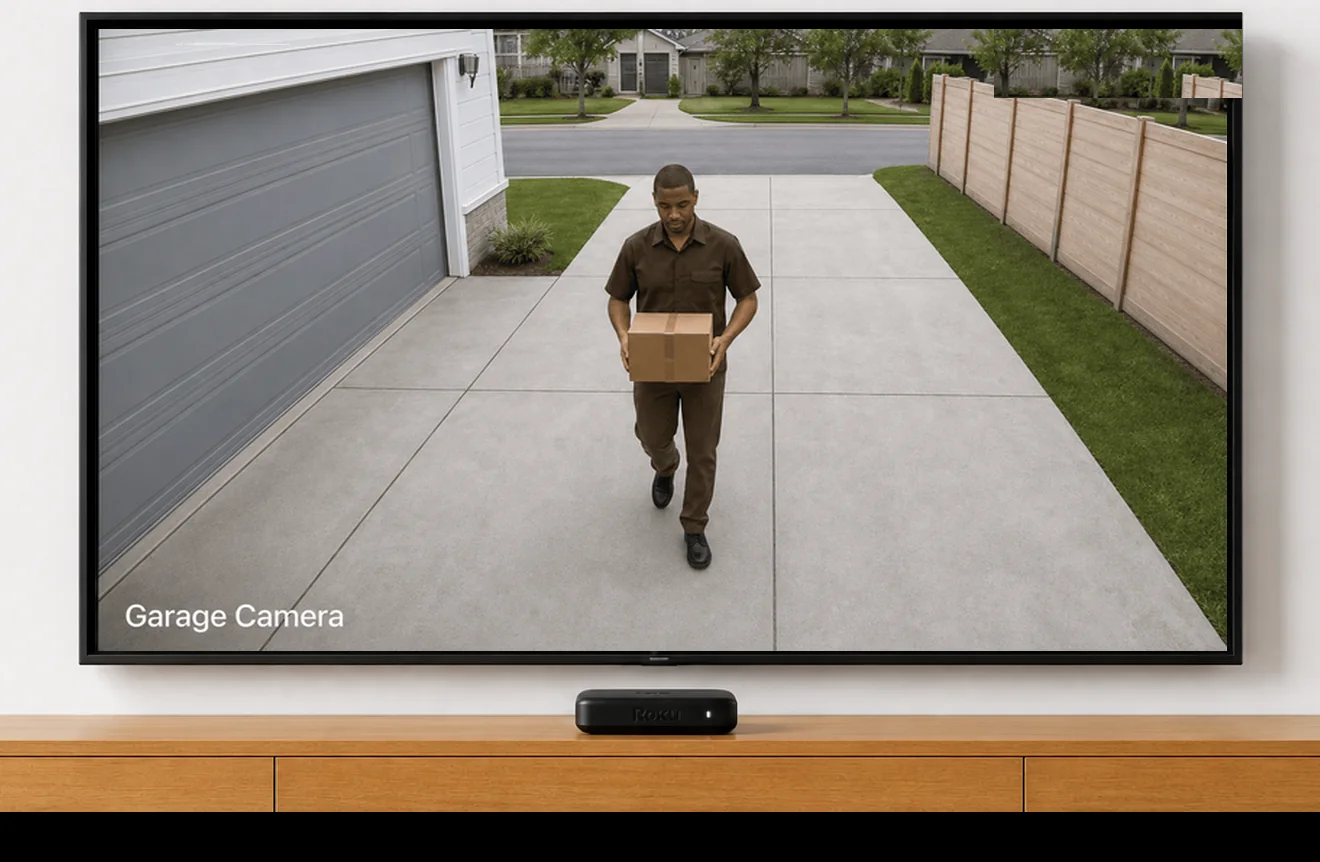
In full screen, the remote does this:
- OK on a tile opens it full screen.
- Left and Right switch to the next camera.
- Up zooms in 2×; the arrows then move around the picture. Back, Up or OK zooms out.
- Play/Pause mutes and unmutes.
- Back returns to the wall.
Auto-Cycle steps through your cameras as snapshots. Camera fit and tile spacing are in Settings → Display, the same choices as on the other TVs.
One more Roku habit: the screensaver only stays away while video is playing, so it can appear over the wall. Any button brings the wall straight back; a camera open full screen keeps it off.
Recommended next: turn on 24/7 recording for the cameras you watch most — it keeps the wall’s event history complete.
Adding another Roku?
One Ring account covers up to 10 TVs — each needs its own box.
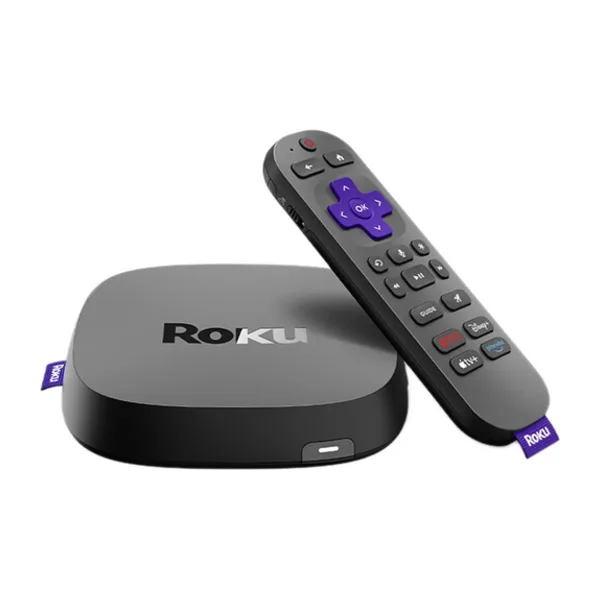
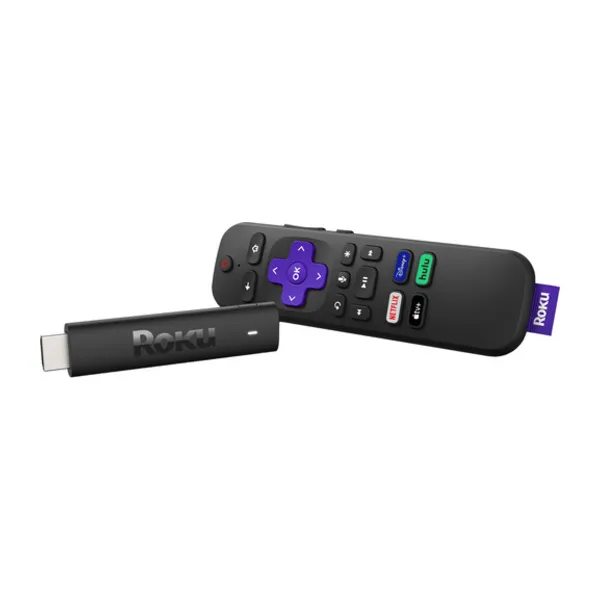
As an Amazon Associate we earn from qualifying purchases.
Related
Pairing your TV →Full screen: zoom and switch cameras →Camera fit →Auto-Cycle →Add or remove cameras →Add or remove a TV →Still stuck? Tell us where the steps stopped matching what you see — we usually reply within a day.
Contact support